

Kubernetes 101 | Setting up Kubernetes Cluster Locally
This blog is about setting the local Kubernetes cluster for learning & testing using multiple tools like Kind, Minikube, Kubeadm & K3s.

KIND
kind is a tool for running local Kubernetes clusters using Docker container “nodes”. Kind was primarily designed for testing Kubernetes itself, but may be used for local development or CI.
kind runs a local Kubernetes cluster by using Docker containers as “nodes”.
Prequisites
This setup is based on ubuntu 18.04 . In this exercise we will create a Kubernetes cluster locally then explore the basic components present in the cluster after that we will create a nginx pod inside the cluster using an YAML file and then we will destroy this cluster. To create Kubernetes cluster locally use the below mentioned command:
- Ubuntu Linux 18.04
- Docker
Installation
- Install docker
#apt update -y
#apt update docker.io
- Install kind
#curl -Lo ./kind https://kind.sigs.k8s.io/dl/v0.14.0/kind-linux-amd64
#chmod +x ./kind
#mv ./kind  /usr/bin/kind
- Install Kubectl if not installed
#curl -LO "https://dl.k8s.io/release/$(curl -L -s https://dl.k8s.io/release/stable.txt)/bin/linux/amd64/kubectl"
#sudo install -o root -g root -m 0755 kubectl /usr/local/bin/kubectl

1) Create Cluster locally
- Run kind command to create cluster
#kind create cluster
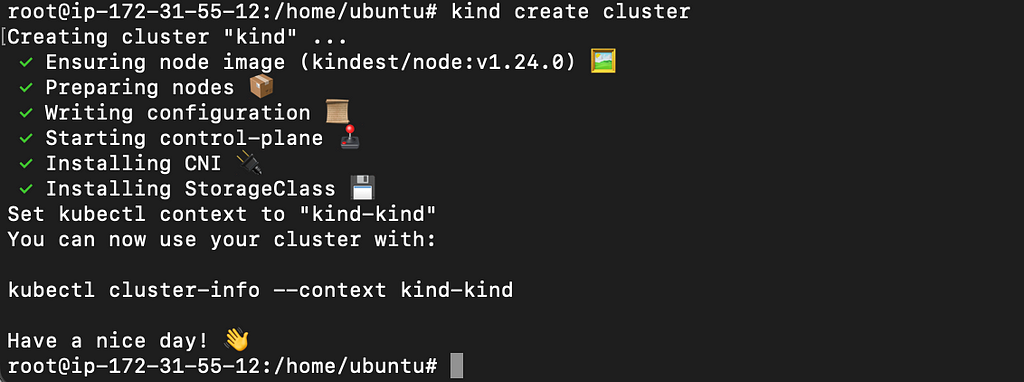
- Once our cluster is deployed locally, we can enumerate the number of pods present in this cluster using command mentioned below:
#kubectl get pods

No resources found in default namespace So, we do not have any pods scheduled in default namespace, lets try to list all the pods present in all the namespaces of this cluster using command mentioned below:
#kubectl get pods -A
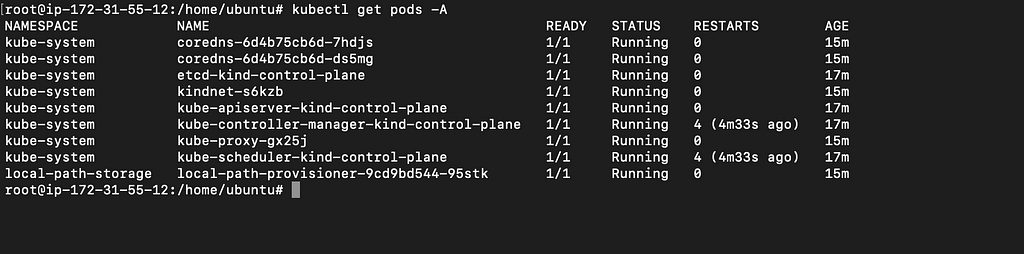
Check number of nodes present in this cluster:
#kubectl get nodes -o wide

Currently we have no pods running in default namespace of the cluster but there are multiple containers are running inside the kube-system namespace.
Create a YAML file to create nginx pod inside Kubernetes cluster:
cat <<EOF >/tmp/nginx-web.yaml
apiVersion: v1
kind: Pod
metadata:
  name: nginx
spec:
  containers:
    - name: static-web
      image: nginx
EOF
Create nginx pod in our cluster using command mentioned below:
kubectl create -f /tmp/nginx-web.yaml

Check the pods present inside the cluster:
kubectl get pods
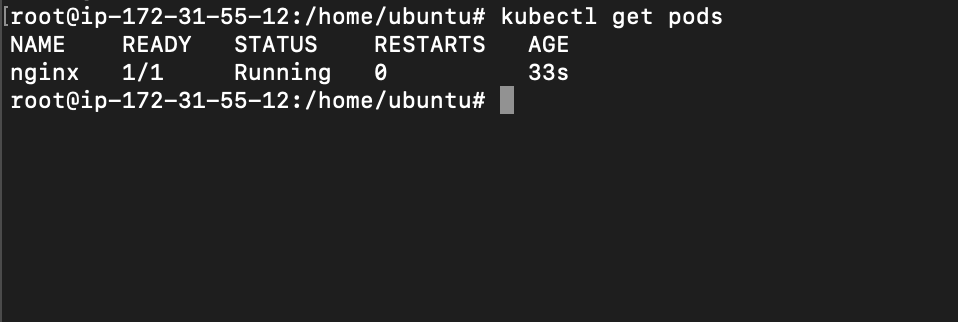
So, we have createe a pod inside the cluster.
kind delete cluster

2. Minikube
Minikube is a Kubernetes SIGs project which spawns a VM that is essentially a single node K8s cluster. It uses hypervisors which can be used on all of the major operating systems. You can create multiple instances in parallel.
Prequisite
- 2 CPUs or more
- 2GB of free memory
- 20GB of free disk space
- Container or virtual machine manager, such as: Docker, Hyperkit, Hyper-V, KVM, Parallels, Podman, VirtualBox, or VMware Fusion/Workstation

- Install docker to avoid error.
#apt install docker.io
#sudo usermod -aG docker $USER && newgrp docker

Installation
curl -LO https://storage.googleapis.com/minikube/releases/latest/minikube_latest_amd64.deb
sudo dpkg -i minikube_latest_amd64.deb

Start the minikube to create cluster
Run minikube as a non-root user.
#minikube start

kubectl get nodes -o wide

Lets create a YAML file to create nginx pod inside Kubernetes cluster:
cat <<EOF >/tmp/nginx-web.yaml
apiVersion: v1
kind: Pod
metadata:
  name: nginx
spec:
  containers:
    - name: static-web
      image: nginx
EOF
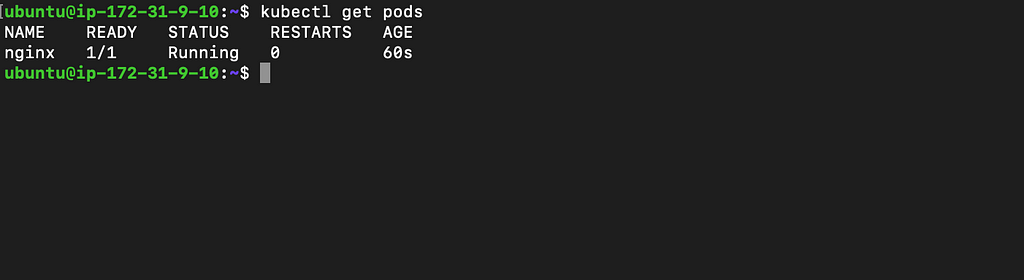
Use the above mentioned file to schedule nginx pod:
kubectl create -f /tmp/nginx-web.yaml

kubectl get pods
3. Kubeadm
Prequisite
- 2 CPUs or more
- 2GB of free memory
- 20GB of free disk space
#sudo apt-get update
#sudo apt-get install -y apt-transport-https ca-certificates
# Remove all other versions of docker from your system
sudo apt-get remove -y docker docker-engine \
  docker.io containerd runc

# Add docker GPG key
curl -fsSL https://download.docker.com/linux/ubuntu/gpg \
  | sudo gpg --dearmor \
  -o /usr/share/keyrings/docker-archive-keyring.gpg

# Add docker apt repository
echo \
  "deb [arch=amd64 signed-by=/usr/share/keyrings/docker-archive-keyring.gpg] https://download.docker.com/linux/ubuntu $(lsb_release -cs) stable" \
  | sudo tee /etc/apt/sources.list.d/docker.list

# Fetch the package lists from docker repository
sudo apt-get update

# Install docker and containerd
sudo apt-get install -y docker-ce docker-ce-cli containerd.io
Configure docker for kubeadm
We have to do some configuration changes to docker to make it work with Kubernetes or kubeadm pre-flight checks will fail.
# Configure docker to use overlay2 storage and systemd
sudo mkdir -p /etc/docker
cat <<EOF | sudo tee /etc/docker/daemon.json
{
    "exec-opts": ["native.cgroupdriver=systemd"],
    "log-driver": "json-file",
    "log-opts": {"max-size": "100m"},
    "storage-driver": "overlay2"
}
EOF
# Restart docker to load new configuration
sudo systemctl restart docker
# Add docker to start up programs
sudo systemctl enable docker
# Allow current user access to docker command line
sudo usermod -aG docker $USER
Install kubeadm, kubelet & kubectl
You need to ensure the versions of kubeadm, kubelet and kubectl are compatible.
# Add Kubernetes GPG key
sudo curl -fsSLo /usr/share/keyrings/kubernetes-archive-keyring.gpg \
https://packages.cloud.google.com/apt/doc/apt-key.gpg
# Add Kubernetes apt repository
echo "deb [signed-by=/usr/share/keyrings/kubernetes-archive-keyring.gpg] https://apt.kubernetes.io/ kubernetes-xenial main" \
  | sudo tee /etc/apt/sources.list.d/kubernetes.list
# Fetch package list
sudo apt-get update
sudo apt-get install -y kubelet kubeadm kubectl
# Prevent them from being updated automatically
sudo apt-mark hold kubelet kubeadm kubectl
Ensure swap is disabled
The swap feature has to be disabled because it is not supported by Kubernetes. See the GitHub issue regarding swap on Kubernetes for details.
# See if swap is enabled
swapon --show
# Turn off swap
sudo swapoff -a
# Disable swap completely
sudo sed -i -e '/swap/d' /etc/fstab
Run below mentioned commands to avoid error:
Also incase of Kubeadm unknown service runtime.v1alpha2.RuntimeService #4581 error
rm /etc/containerd/config.toml
systemctl restart containerd
kubeadm init
Create the cluster using kubeadm
kubeadm init --pod-network-cidr=10.244.0.0/16
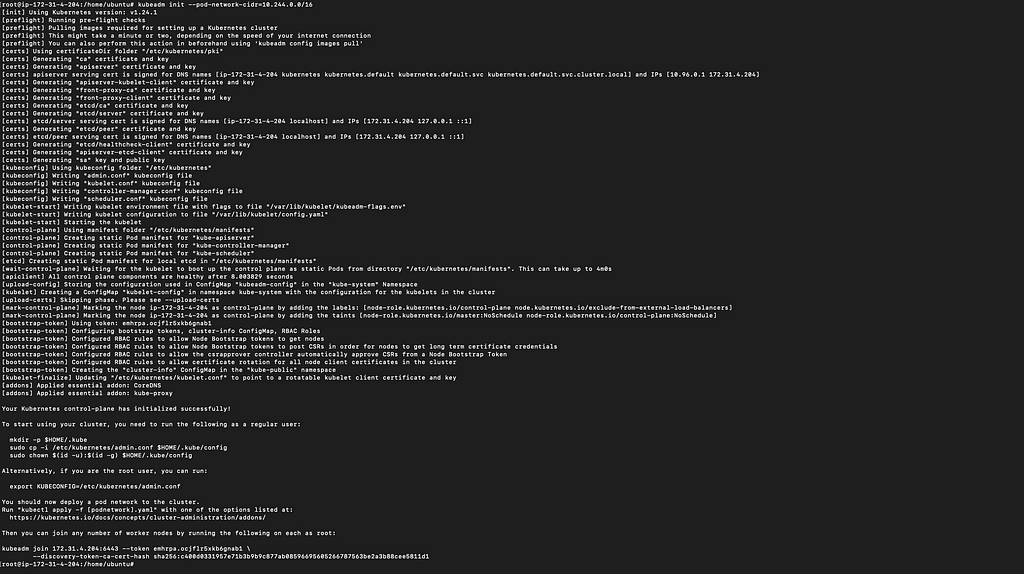
Then re run the command
mkdir -p $HOME/.kube
cp -i /etc/kubernetes/admin.conf $HOME/.kube/config
chown $(id -u):$(id -g) $HOME/.kube/config
kubectl apply -f https://raw.githubusercontent.com/coreos/flannel/master/Documentation/kube-flannel.yml
kubectl apply -f https://raw.githubusercontent.com/coreos/flannel/master/Documentation/k8s-manifests/kube-flannel-rbac.yml
kubectl taint nodes --all node-role.kubernetes.io/master-
kubectl get nodes

To reset the cluster:
kubeadm reset
4. K3s
K3s is a highly available, certified Kubernetes distribution designed for production workloads in unattended, resource-constrained, remote locations or inside IoT appliances.
Run the command and setup is complete.
curl -sfL https://get.k3s.io | sh -

Now, lets create a YAML file to create nginx pod inside Kubernetes cluster:
cat <<EOF >/tmp/nginx-web.yaml
apiVersion: v1
kind: Pod
metadata:
  name: nginx
spec:
  containers:
    - name: static-web
      image: nginx
EOF
Use the above mentioned file to schedule nginx pod:
kubectl create -f /tmp/nginx-web.yaml
kubectl get pods

Reference:
- https://blog.radwell.codes/2021/05/provisioning-single-node-kubernetes-cluster-using-kubeadm-on-ubuntu-20-04/
- https://k3s.io/
- https://www.containiq.com/post/kubeadm
- https://www.jambit.com/en/latest-info/toilet-papers/minikube-vs-kind-vs-k3s-which-local-kubernetes-cluster-should-i-use/
Kubernetes 101 | Setting up Kubernetes Cluster Locally was originally published in InfoSec Write-ups on Medium, where people are continuing the conversation by highlighting and responding to this story.
Continue reading on Medium
Enjoyed this article? Visit Medium to leave a comment, clap, or follow Divyanshu for more insights!
Read on MediumMore Articles
How I Found a Path Traversal in the Rancher Dashboard via HAR Replay
The issue is considered as a hardening gap by the Rancher Security team, as it resides within a feature limited to dev mode in Rancher Dashboard. Finding bugs isn’t always about breaking into a live ...
EKS Moved To containerd, GuardDuty’s Runtime Alert Stayed Behind. Here’s Why That Matters.
Why this matters especially for startups relying on AWS GuardDuty? Why I’m Writing This Amazon EKS has moved to from 1.24 and later. Kubernetes removed dockershim in v1.24. Docker as a runtime is leg...