

Learn Anchore with Katakoda
This blog will help you in installing an Anchore and scanning docker images. Here, I have used openjdk and debian docker images to perform the scan.
For a demo, follow the link https://www.katacoda.com/infosecblo55om
Installation of Anchore
Anchore Engine is a Docker container static analysis tool that automates the inspection, analysis, and evaluation of images. It then provides a policy evaluation result for each image based on severity.
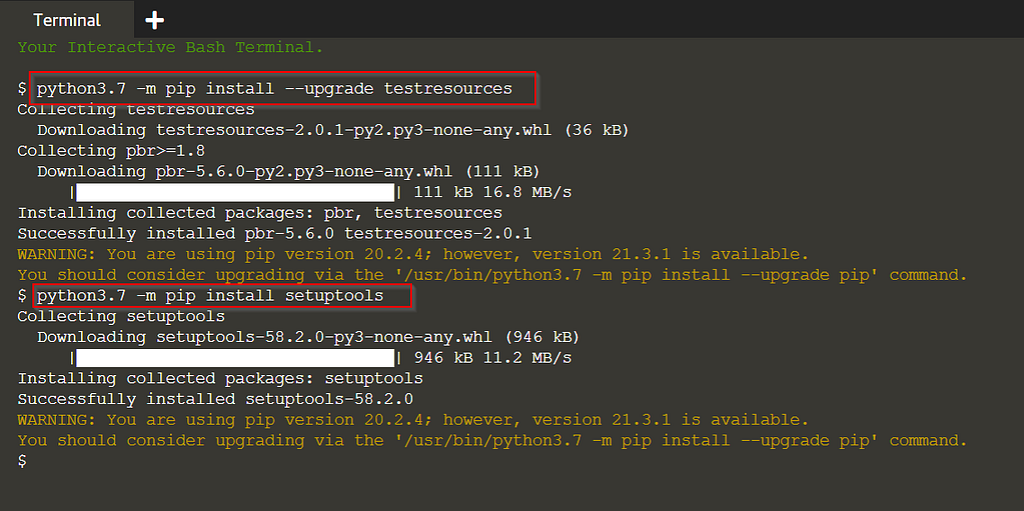
For pre-requisite, follow the below steps:
python3.7 -m pip install --upgrade testresources
python3.7 -m pip install setuptools
Now, start the Anchore-engine and database using docker containers. It also needs a database to save the results.
mkdir anchore
cd anchore
curl https://engine.anchore.io/docs/quickstart/docker-compose.yaml > docker-compose.yaml
docker-compose up -d
docker ps


Here, you will see that the docker containers for anchore-engine(API, analyzer, policy-engine, etc.) and Postgres database are now running successfully.
Time to install the anchore cli using pip.
python3.7 -m pip install anchorecli
anchore-cli --version

Scanning Docker Images
We have installed Anchore successfully, lets check how efficiently it works by scanning docker images. Firstly check the status, if all the services are up.
anchore-cli --url http://localhost:8228/v1 --u admin --p foobar system status
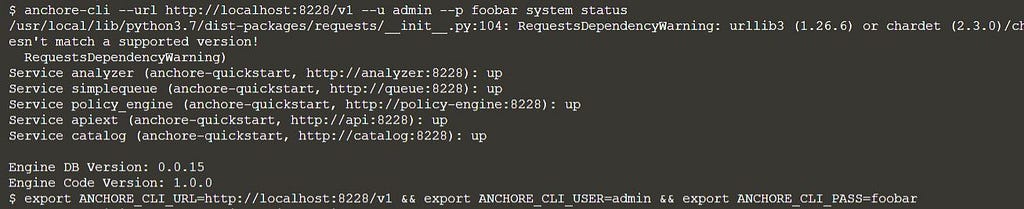
We are good to go. Now export the environment variables. Credentials can also be passed through cli.
export ANCHORE_CLI_URL=http://localhost:8228/v1
export ANCHORE_CLI_USER=admin
export ANCHORE_CLI_PASS=foobar
To analyze a docker image, anchore first fetches the given image and then performs the analysis. Here, we are adding two images for the scan: “openjdk:8-jre-alpine” & “docker.io/library/debian:latest”.
anchore-cli image add openjdk:8-jre-alpine
anchore-cli image add docker.io/library/debian:latest

Check the status. When both the analysis are finished, move to the next step.
anchore-cli image list

Check the status again by running the above command if both the images are not analyzed.
We can now look into the results. We have three flags to get the result: os, non-os, all. Here, we are considering all. Analysis of a docker image can take some time to update as the anchore-engine saves it in a database for audit and future purposes.
anchore-cli image vuln openjdk:8-jre-alpine all

anchore-cli image vuln docker.io/library/debian:latest all

If the result is not published, wait for the database sync and then check the result again.
To check if results are updated to the database, use the below command.
anchore-cli system feeds list
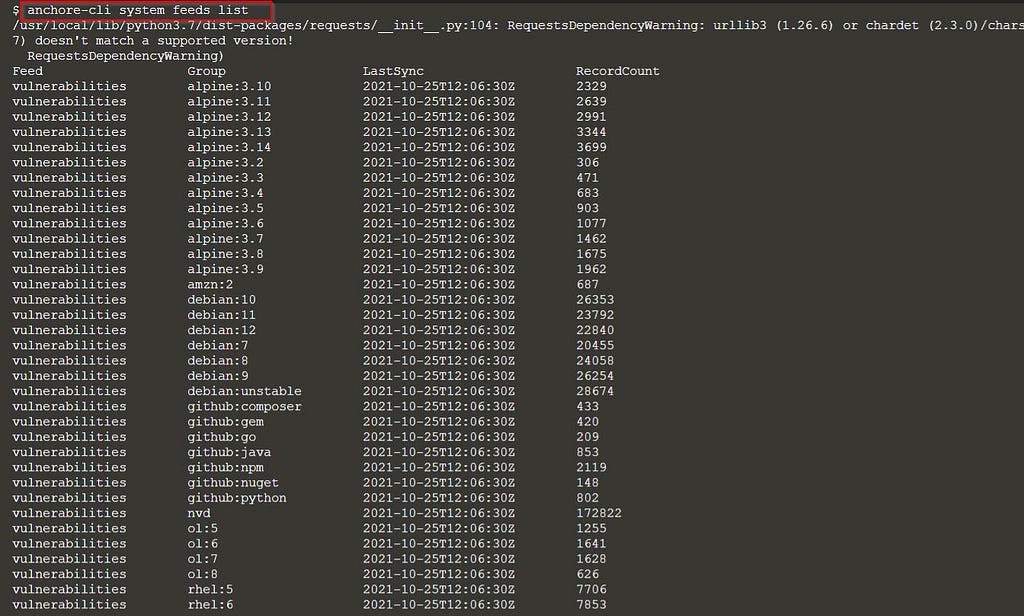
If it is showing pending, wait for 5–10mins and check the results again.
References:
Continue reading on Medium
Enjoyed this article? Visit Medium to leave a comment, clap, or follow Anjali for more insights!
Read on MediumMore Articles
How I Found a Path Traversal in the Rancher Dashboard via HAR Replay
The issue is considered as a hardening gap by the Rancher Security team, as it resides within a feature limited to dev mode in Rancher Dashboard. Finding bugs isn’t always about breaking into a live ...
EKS Moved To containerd, GuardDuty’s Runtime Alert Stayed Behind. Here’s Why That Matters.
Why this matters especially for startups relying on AWS GuardDuty? Why I’m Writing This Amazon EKS has moved to from 1.24 and later. Kubernetes removed dockershim in v1.24. Docker as a runtime is leg...